
If you have saved a search in REALM, you can easily open it to review properties that match the search criteria or to make any changes to the search filters or notifications.
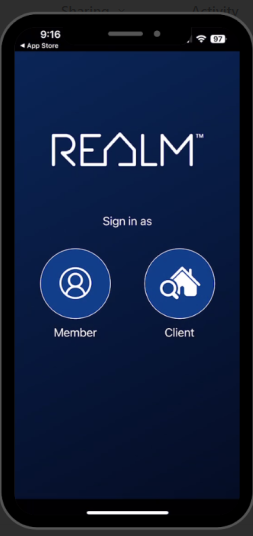 To open a saved search in REALM using the mobile app:
- Select the Contacts icon
from the menu bar.
- Select where the search is saved (your contact profile or a client's contact profile)
- Click the Search icon
under the contact information.
- You will be directed to a list of saved searches under that contact (or yourself)
- Tap the title of the search to open it
 To open a saved search in REALM using the computer desktop:
- Select Contacts
from the menu bar.
- Select where the search is saved (your contact profile or a client's contact profile)
- Click the title of the search to open it.
- You will be directed to the search window, and properties that match the criteria defined in the saved search will show on the screen.